Windows stop codes, crash loops and random restarts
Blue Screen Crashing Repair Brighton
Blue screen crash diagnosis in Brighton for Windows stop errors, recovery loops, random restarts, driver faults, bad memory, failing storage and overheating computers.
Blue screens are protective stop errors rather than a diagnosis by themselves. LFX checks the error pattern, Windows records and physical components to identify why the computer is unstable and which remedy is appropriate.
Record the stop code before restarting
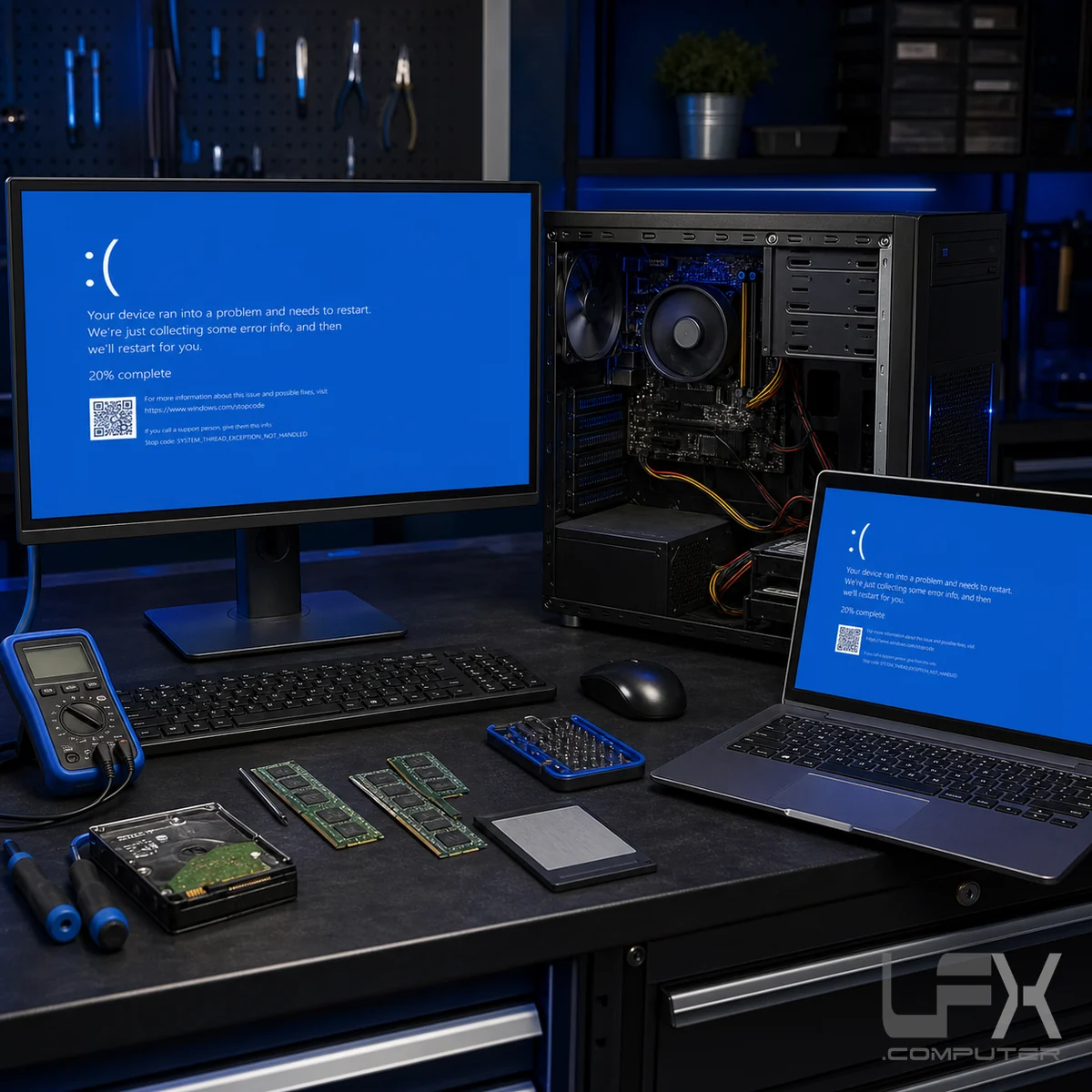
Take a clear photograph of the blue screen and note what the computer was doing when it crashed. The stop code, recent update, new device, game, application or unusual noise can shorten diagnosis considerably.
If the computer is clicking, overheating, repeatedly entering recovery mode or showing missing files, avoid repeated restarts. Storage and temperature faults can worsen with continued use, so protecting the data comes before forcing Windows to boot.
Video guide
Blue screen, recovery mode and non-booting Windows
A blue screen is Windows stopping itself after detecting a serious error. The visible message is useful evidence, but the root cause may be hardware, software or a combination of both.
Recovery mode and automatic repair loops do not automatically mean Windows must be reinstalled. Diagnosis checks the crash pattern and data risk before selecting the least disruptive remedy.
Windows stop errors and restart loops
Recovery mode and automatic repair failures
Non-booting laptops and desktop PCs
Data protection before major repair work
Hardware causes
Memory, storage, heat and component faults
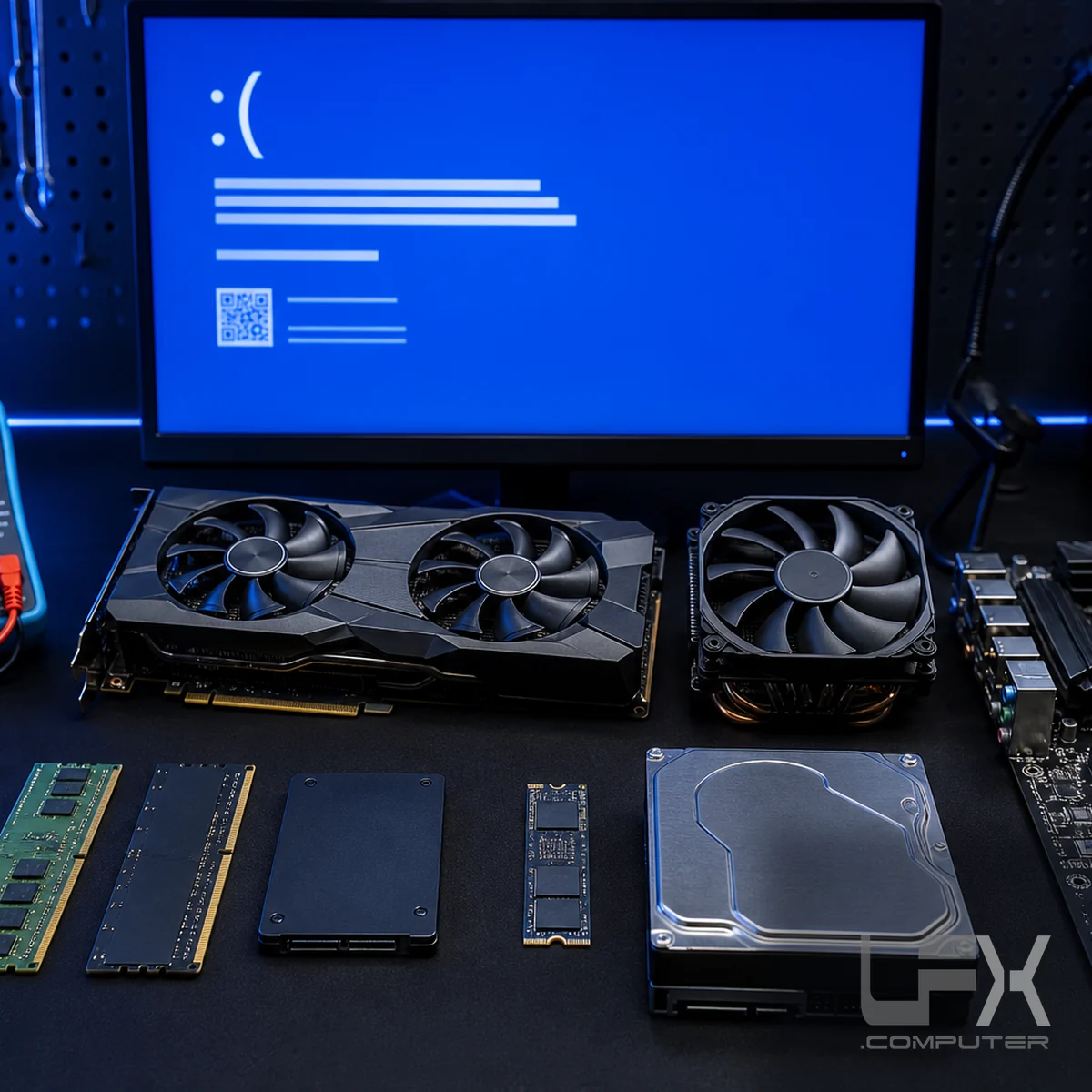
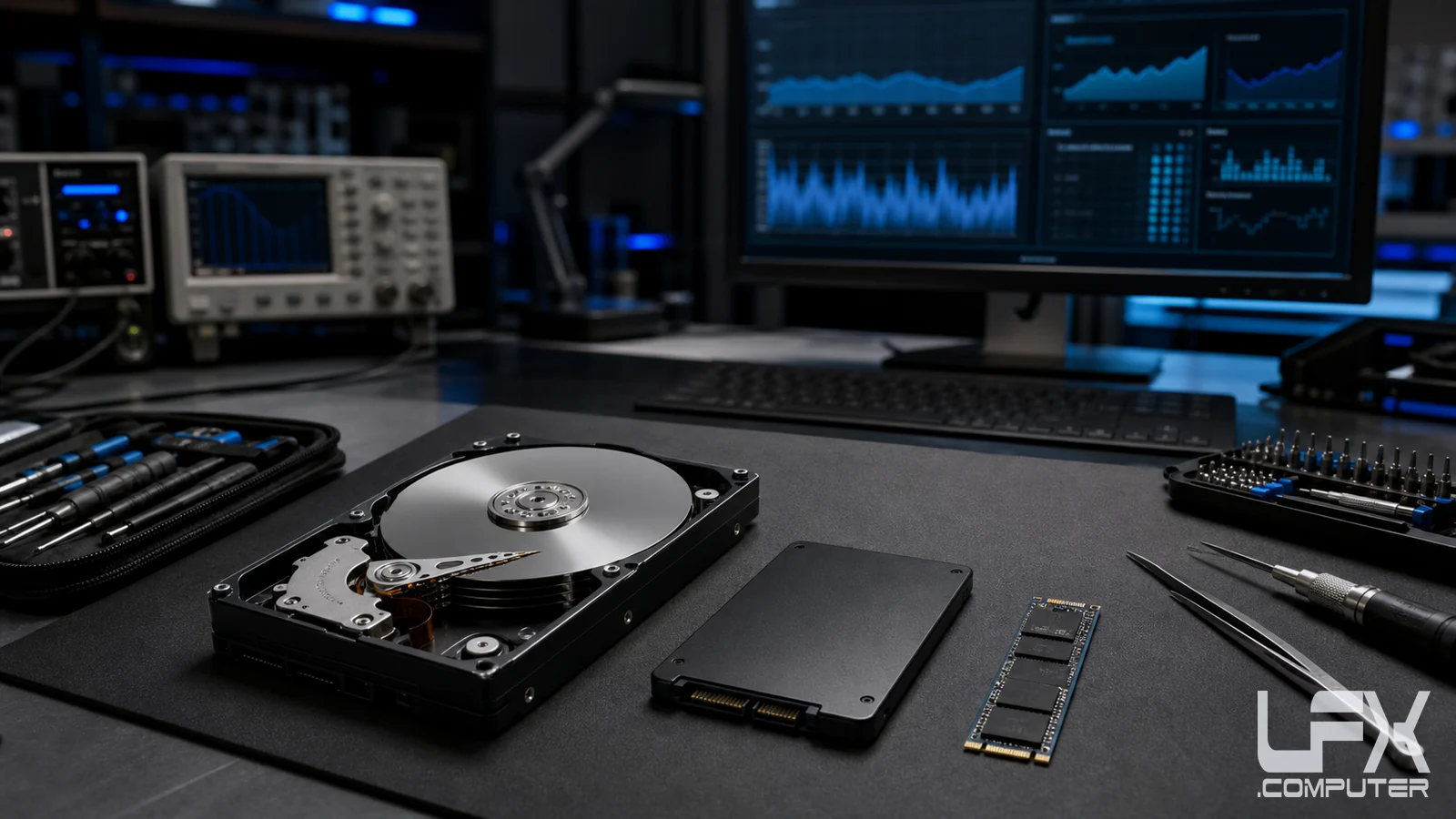
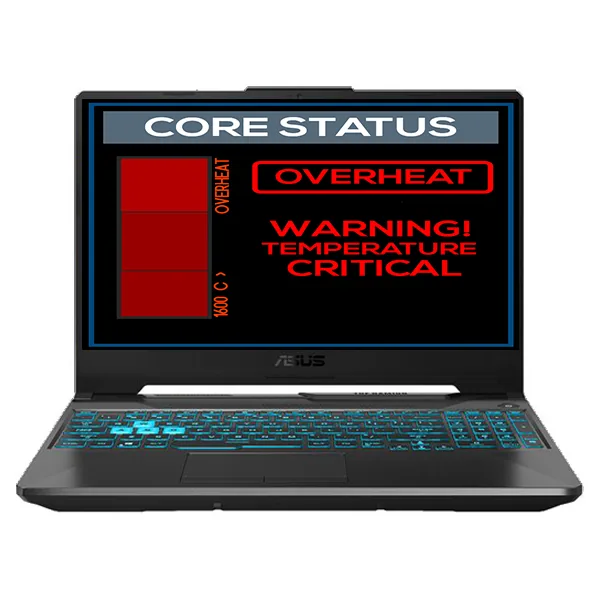
Unstable RAM, failing HDD or SSD storage, overheating processors, graphics-card faults, power instability and motherboard problems can all trigger blue screens. Crashes during gaming or heavy workloads often point toward heat, graphics, memory or power delivery.
LFX isolates components rather than replacing parts at random. Testing can include memory checks, storage health, temperature monitoring, graphics stress tests, power inspection and examination of recently installed hardware.
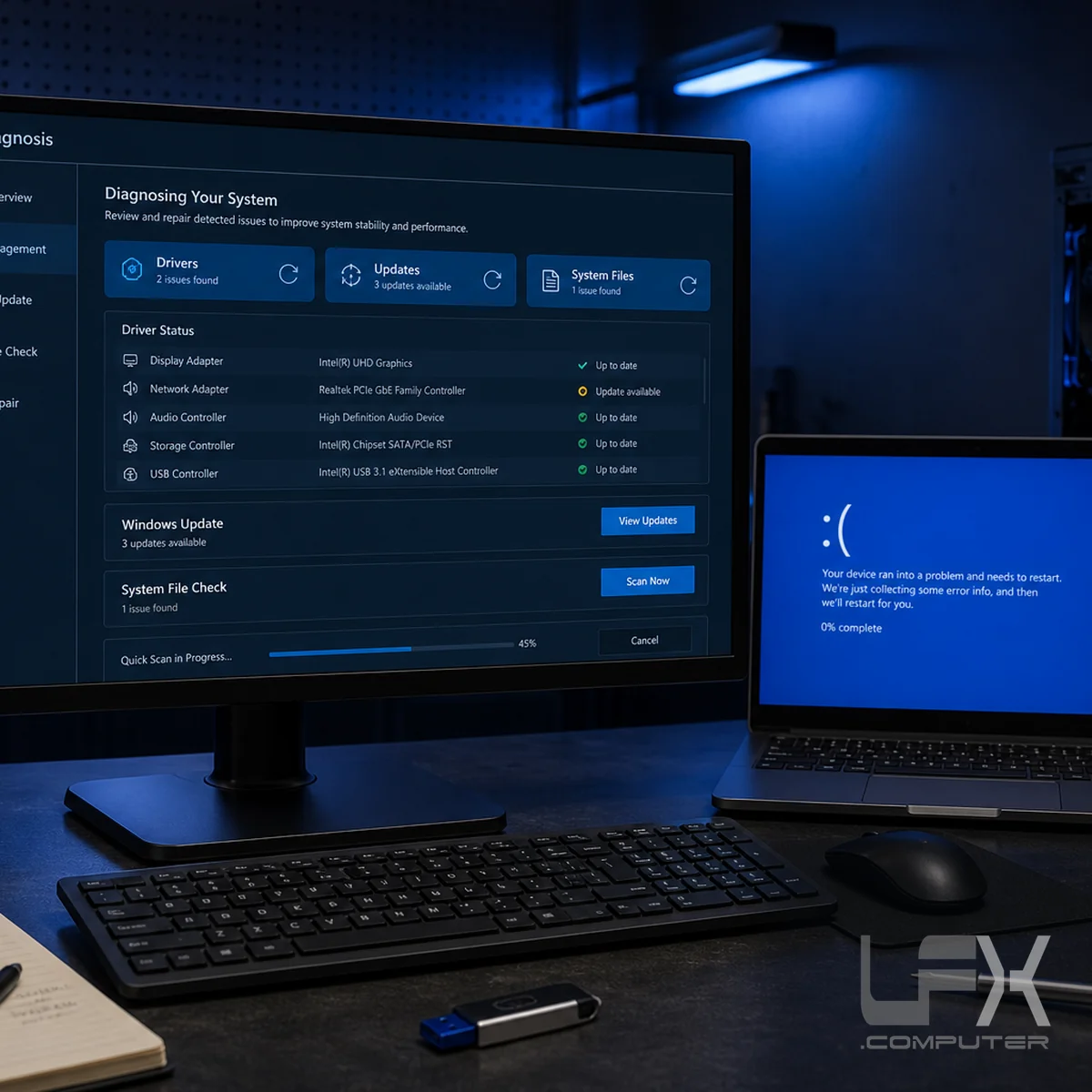
A damaged or incompatible driver, interrupted Windows update, corrupted system file, security software conflict or unstable application can crash an otherwise healthy computer. The timing of the fault is important, especially when crashes started after an update or installation.
Possible remedies include removing or replacing a driver, rolling back an update, repairing system files, checking startup software, removing malware or repairing the Windows installation. A full reinstall is not the automatic first step.
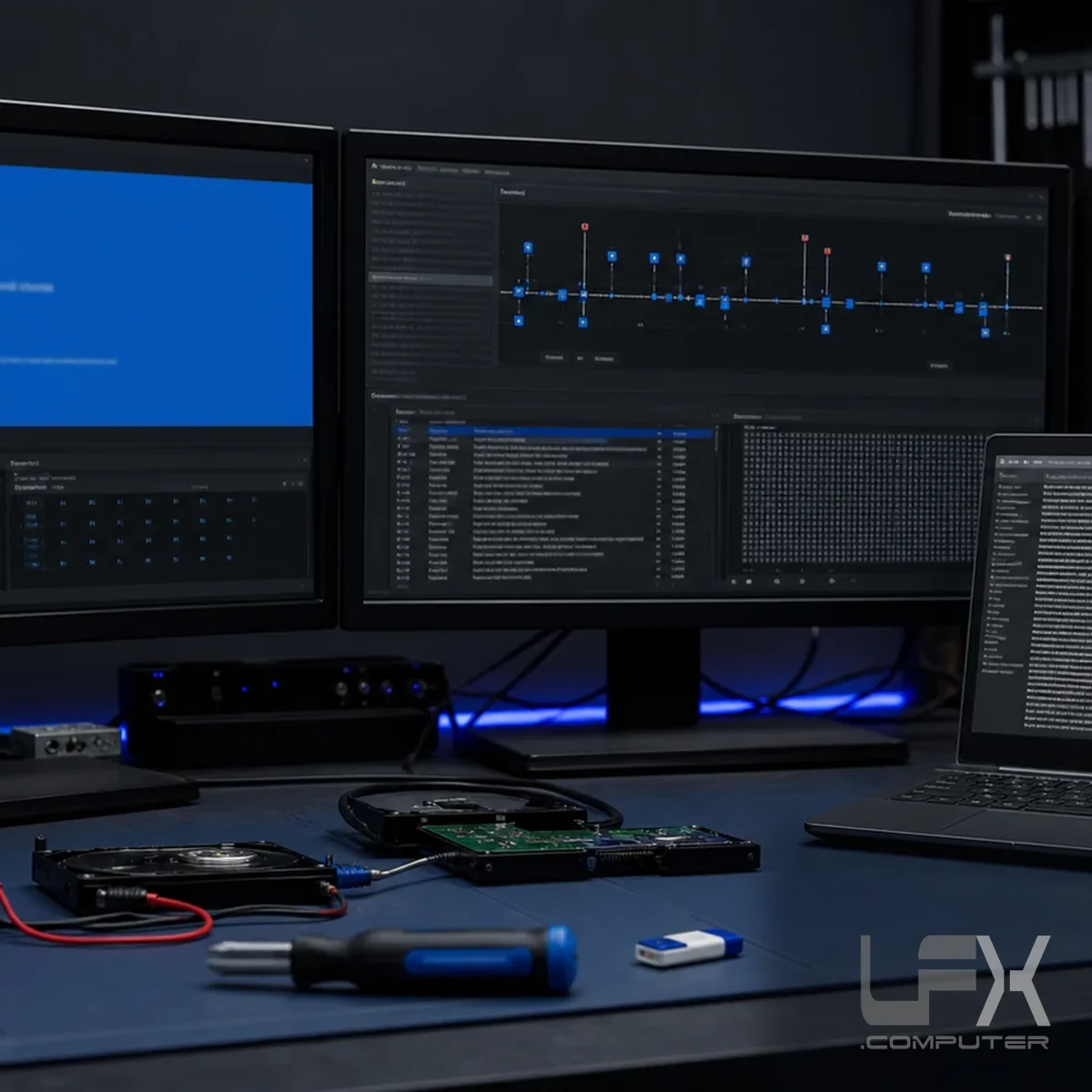
Windows can record event logs and small memory-dump files when it crashes. These records may identify a driver or component involved, but a named file is not always the true cause, so the evidence must be compared with hardware tests and the crash pattern.
Useful details include whether the same code repeats, whether the crash occurs at startup or under load, and whether Safe Mode remains stable. This narrows the repair and avoids unnecessary replacement or reinstallation.
Stop-code and crash-pattern review
Windows event-log inspection
Memory-dump analysis where files exist
Safe Mode and controlled boot testing
Repair and verification
Targeted repair followed by stability testing
Once the cause is identified, LFX applies the appropriate hardware or software remedy. This may be a driver repair, Windows update correction, cooling service, memory replacement, storage replacement, data-safe Windows repair or clean reinstall.
The computer is then tested under conditions relevant to the original fault. Memory, storage, temperatures, startup and workload stability are checked so the repair is based on evidence rather than a single successful restart.
Often connected to drivers, updates, boot files, storage or memory faults.
Crashes during gaming
Can indicate GPU, power, temperature, memory or demanding driver faults.
Automatic repair loop
Windows cannot complete startup and repeatedly returns to recovery tools.
Random restarts
The computer may restart before the stop screen can remain visible long enough to read.
Crashes after an update
A Windows update, firmware change or new driver may have introduced instability.
Freezing before the blue screen
Slow storage, memory errors, overheating or software deadlocks may occur first.
Clear repair costs
Quotation before repair
Free, no-obligation quotation
After the fault has been assessed, LFX explains the likely cause and proposed repair so you can make an informed decision before chargeable work proceeds.
Fixed fee for software-only faults
Where the blue screen is solely a software problem, a clear fixed repair fee can be offered. Replacement hardware and data recovery are separate where required.
Diagnosis and repair
How LFX resolves repeated crashes
Collect the evidence
Photographs, stop codes, recent changes and the circumstances of each crash establish the pattern.
Protect important data
If storage failure is possible, backup, cloning or recovery is considered before intensive testing.
Separate hardware from software
Component tests, logs, Safe Mode and controlled startup checks narrow the fault.
Repair and prove stability
The selected remedy is followed by startup and workload testing before the computer is returned.
Blue screens can be caused by faulty memory, storage, overheating, graphics hardware, power instability, damaged drivers, failed updates or corrupted Windows system files.
Can blue screens be fixed without reinstalling Windows?
Often, yes. Driver, update, memory, storage and system-file faults can sometimes be repaired without a full reinstall. Reinstallation is considered only when it is the sensible route.
What should I do when a blue screen appears?
Photograph the stop code and note what the computer was doing. Avoid repeated restarts if the drive is clicking, files are missing or the computer is overheating.
Why does my computer keep entering recovery mode?
Windows may be failing to start because of a damaged update, boot files, storage errors, driver faults or unstable hardware. Recovery mode is a symptom rather than the diagnosis.
Will repairing a blue screen delete my files?
Diagnosis starts by considering the data. Where storage failure is suspected, backup, cloning or recovery advice comes before intensive repair or reinstallation.
Is there a fixed fee for software-only blue screen repairs?
When diagnosis confirms a software-only fault, LFX can provide a clear fixed repair fee. Replacement parts and data recovery are separate where required.