Hard drive and SSD fault diagnosis in Brighton for clicking HDDs, failed SATA and NVMe drives, external drive problems, slow computers and data recovery advice.
A storage fault can come from the drive itself, its cable or power supply, an external enclosure, the computer motherboard or damaged software. The safest remedy depends on the drive type, symptoms and importance of the stored data.
Mechanical storage
HDD mechanical hard drives
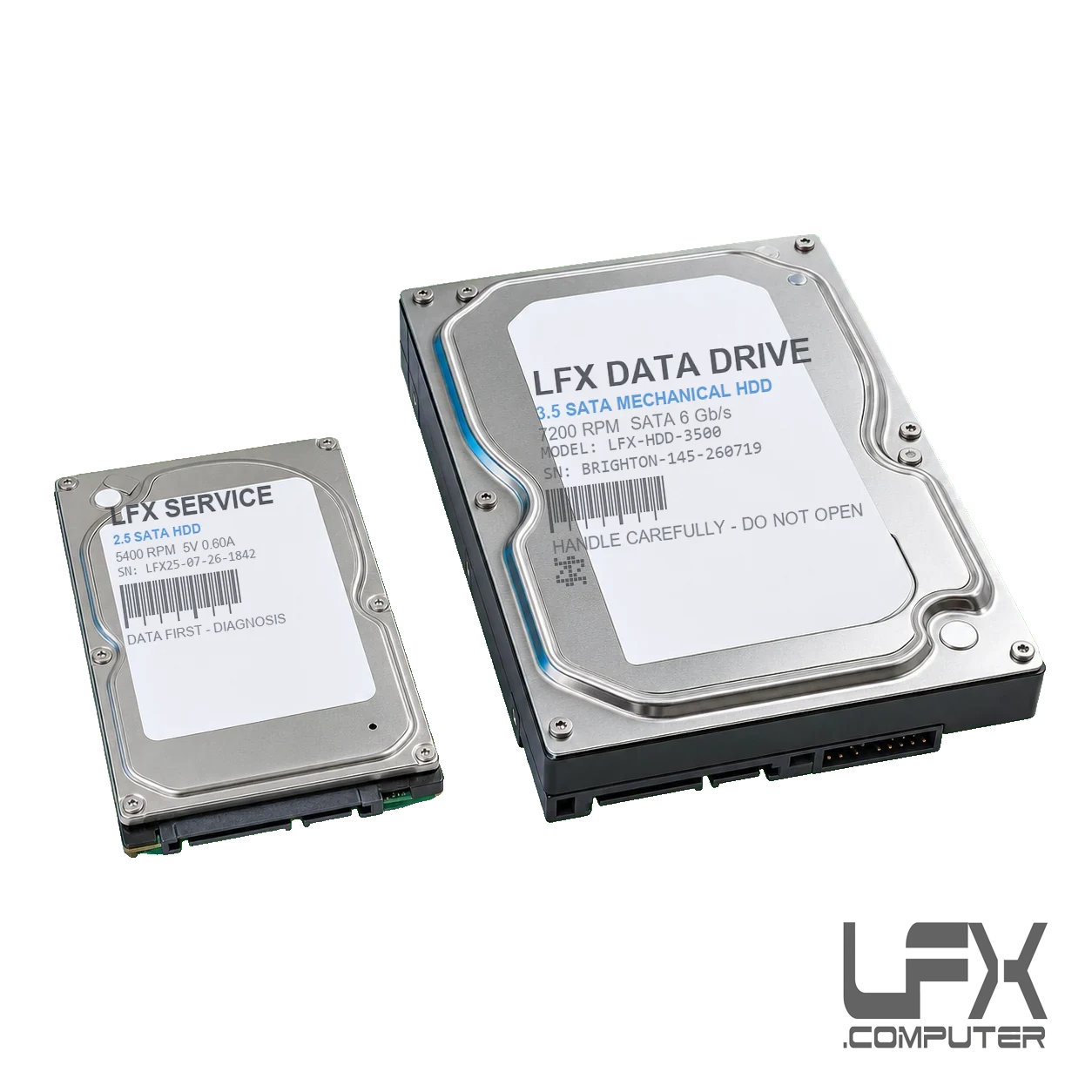
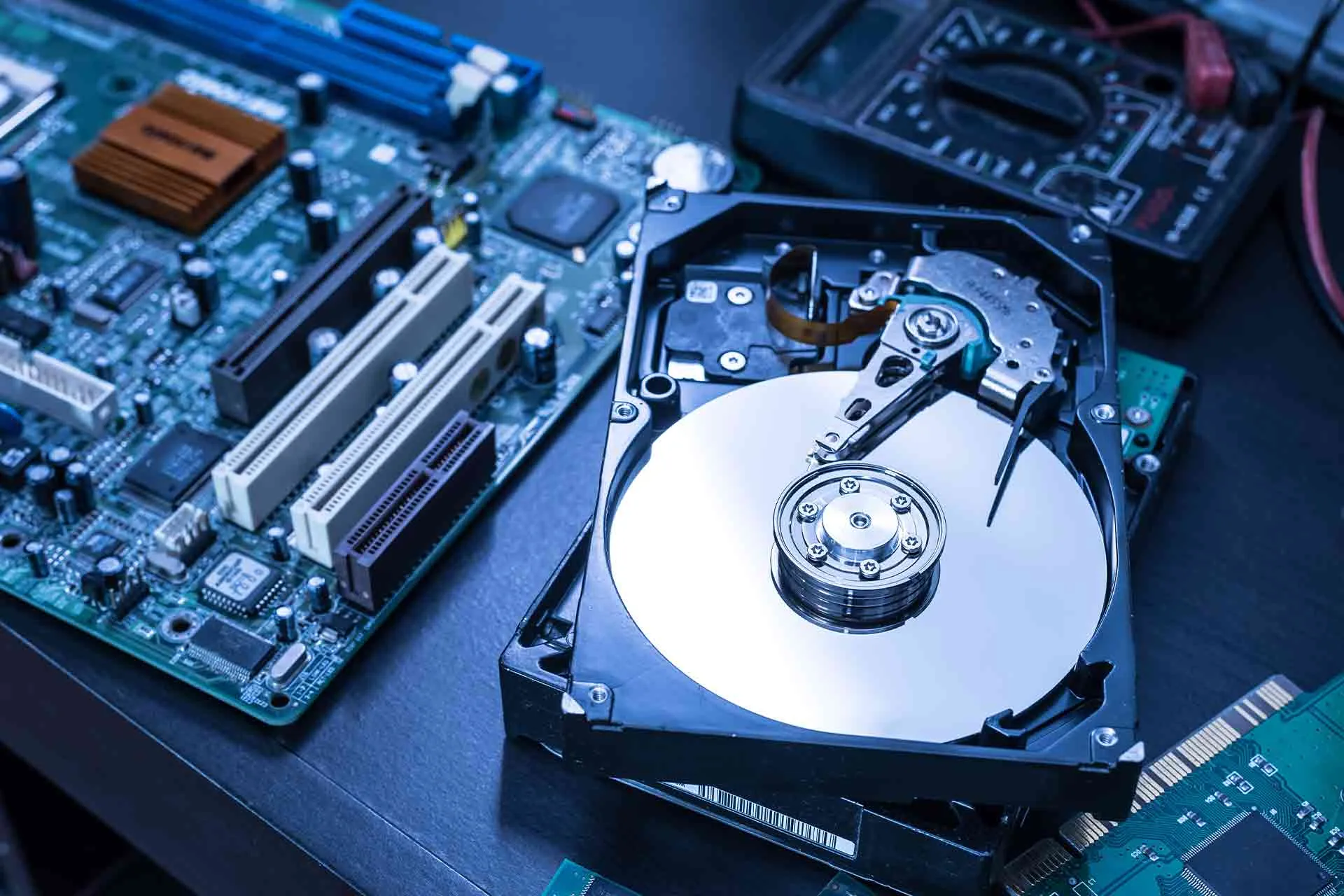
Traditional 2.5-inch laptop and 3.5-inch desktop hard drives store data on spinning magnetic platters. They offer good capacity but contain motors, bearings and moving read/write heads that wear or suffer shock damage.
Common symptoms include clicking or grinding, very slow access, freezing during file copies, bad-sector warnings, corrupted folders and drives that are no longer detected. A readable but unstable HDD may be cloned before it deteriorates further; a mechanically damaged drive may need specialist data recovery.
Connection and SMART health checks where safe
Sector-by-sector cloning when the drive remains readable
Data recovery before replacement when files matter
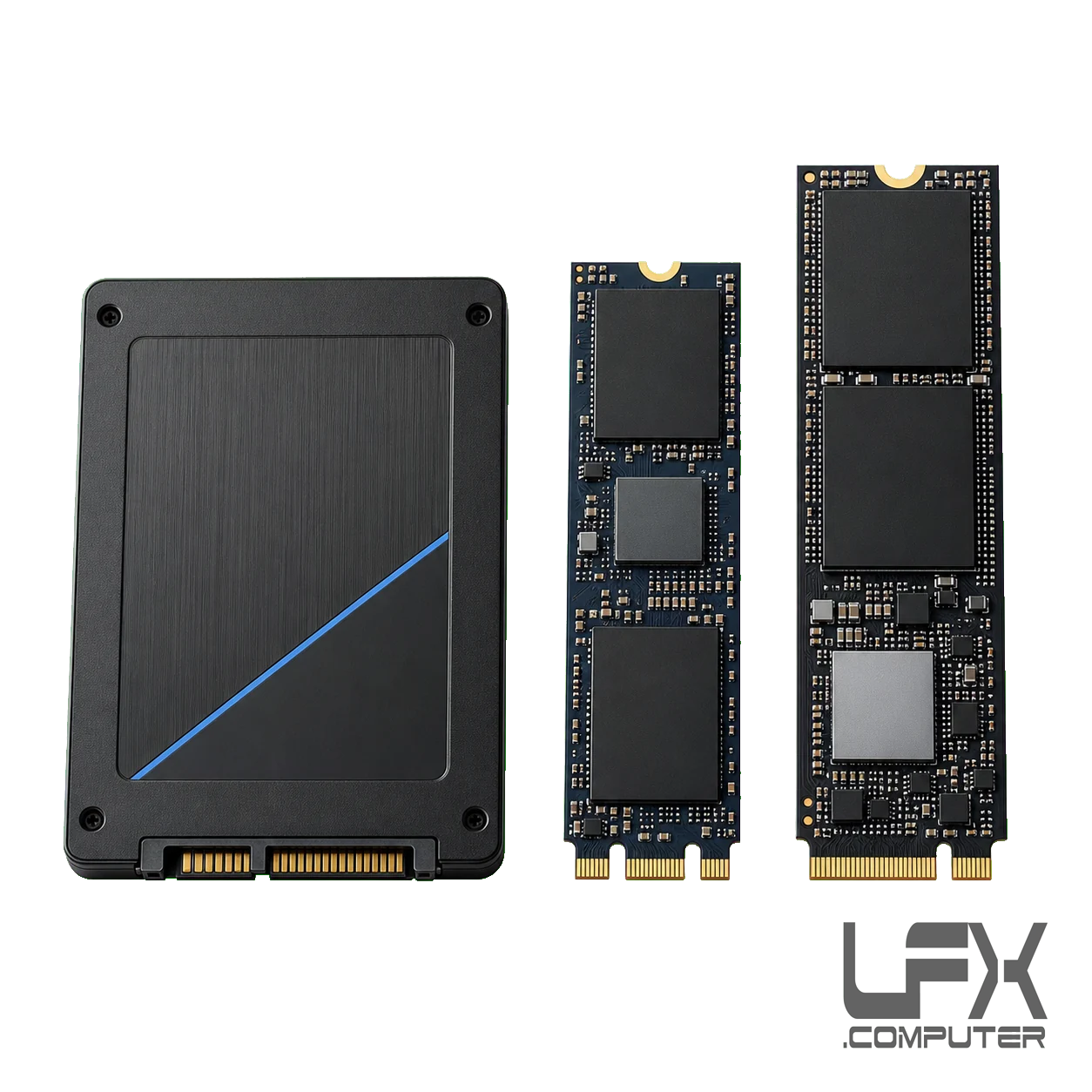
SATA SSDs have no moving parts and are much faster than older hard drives, but their controller, firmware, NAND flash memory and power circuitry can still fail. Failure may be sudden rather than accompanied by mechanical noise.
Symptoms include a computer freezing during startup, the SSD becoming read-only, intermittent detection, failed Windows updates, file corruption or the drive disappearing from the BIOS. Cable, power and controller checks come first; if the SSD is readable, cloning and prompt replacement may be the safest remedy.
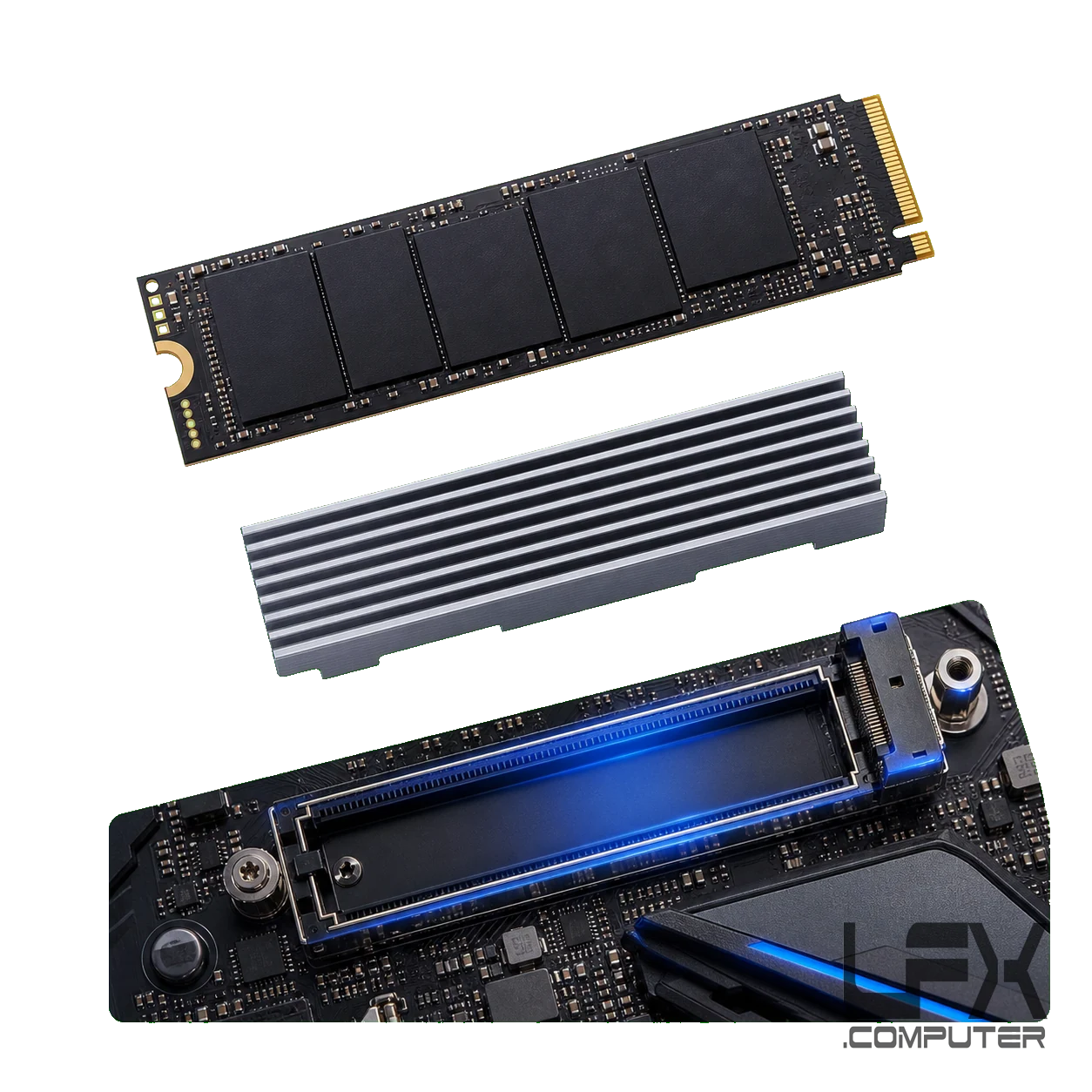
NVMe drives are slim M.2 modules connected through PCIe. They provide very high performance in modern laptops, desktops and gaming PCs, but can suffer controller faults, firmware problems, motherboard compatibility issues and excessive heat.
Warning signs include random blue screens, sudden restart loops, installation failures, performance dropping under load or the drive intermittently vanishing. Diagnosis can include temperature, heatsink, BIOS, slot and firmware checks before deciding whether the drive should be cloned or replaced.
Temperature, airflow and heatsink inspection
BIOS, motherboard slot and firmware checks
Safe cloning where the NVMe drive remains accessible
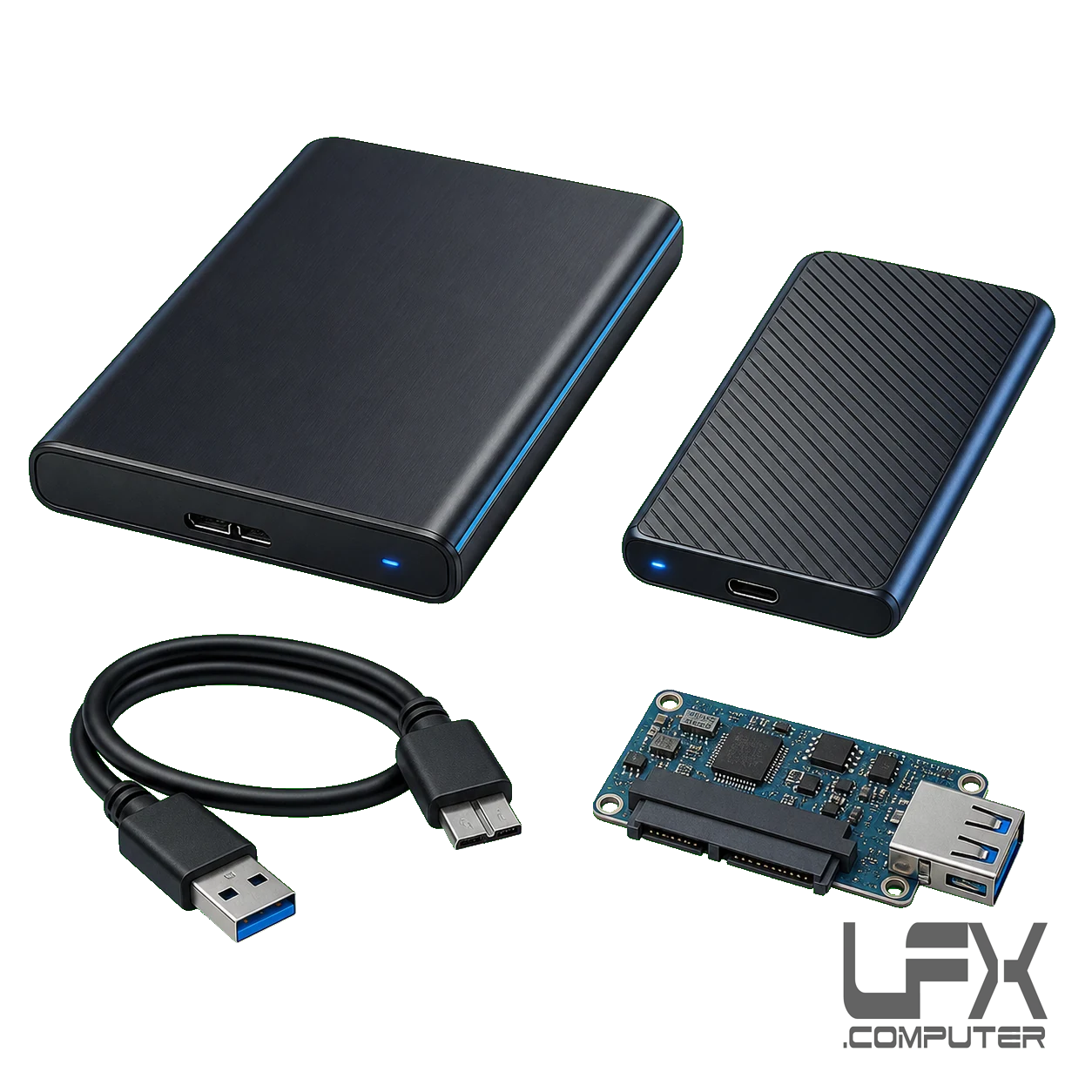
An external drive fault is not always a failed disk. USB cables, sockets, power supplies and the bridge board inside the enclosure can prevent a healthy internal drive from appearing. Portable HDDs can also suffer mechanical damage after a drop.
Testing starts with the least invasive possibilities. If the enclosure or bridge is faulty, the internal drive may be assessed separately. Do not accept a format prompt when the drive contains needed files, because formatting changes the storage and can complicate recovery.
USB cable, socket and power-supply testing
Enclosure and USB bridge diagnosis
Internal drive assessment where construction allows
A mechanical hard drive with a small flash cache. Mechanical symptoms and bad sectors are handled like an HDD fault, with data protection taking priority.
eMMC and soldered storage
Common in lightweight laptops and tablets. The storage is fitted directly to the mainboard, so controller or chip faults may require board-level or specialist recovery.
NAS, RAID and multi-drive storage
Multiple drives work together. Avoid rebuilding or swapping disks without a verified plan, because the drive order, RAID level and controller metadata affect recovery.
Diagnosis and remedies
How LFX approaches a storage fault
Protect the data first
Tell LFX which files matter and whether a current backup exists. A suspected failing drive is handled differently from a routine Windows fault.
Test the drive and connections
Power, cables, ports, enclosure electronics, temperature, detection and health information are checked without unnecessary write activity.
Choose repair, clone or recovery
Simple connection faults may be repaired. An unstable readable drive may be cloned, while severe mechanical or electronic faults may need specialist recovery.
Fit and configure the replacement
After the data route is agreed, LFX can install a suitable replacement SSD or HDD, restore cloned data where possible and repair or reinstall the operating system.
A clicking mechanical drive should be switched off. The priority is normally protecting or recovering the data, then replacing the drive rather than attempting a conventional repair.
Can both HDDs and SSDs fail?
Yes. HDDs suffer mechanical wear, damaged heads and bad sectors, while SSDs can fail through controller, firmware, NAND memory or power faults.
Should I run CHKDSK on a failing drive?
Not before the drive has been assessed. Repair tools can place extra load on unstable storage and may reduce the chance of recovering important files.
Can my files be moved to a replacement SSD?
If the original drive is stable enough to read, it may be possible to clone it. If it is unstable, data recovery should come before operating-system repair or replacement.
Why does a drive appear in the BIOS but not Windows?
The hardware may still be detected while its partition, file system, controller or stored data is damaged. Diagnosis is needed before formatting or reinstalling.
Do you diagnose external hard drives?
Yes. LFX can check the cable, power supply, USB bridge, enclosure and internal drive to identify whether the fault is external or within the storage device.